
Create an Inbox for a new service
To add a new inbox:
- Once the main dashboard has loaded press 'Add a Service' button in the bottom left
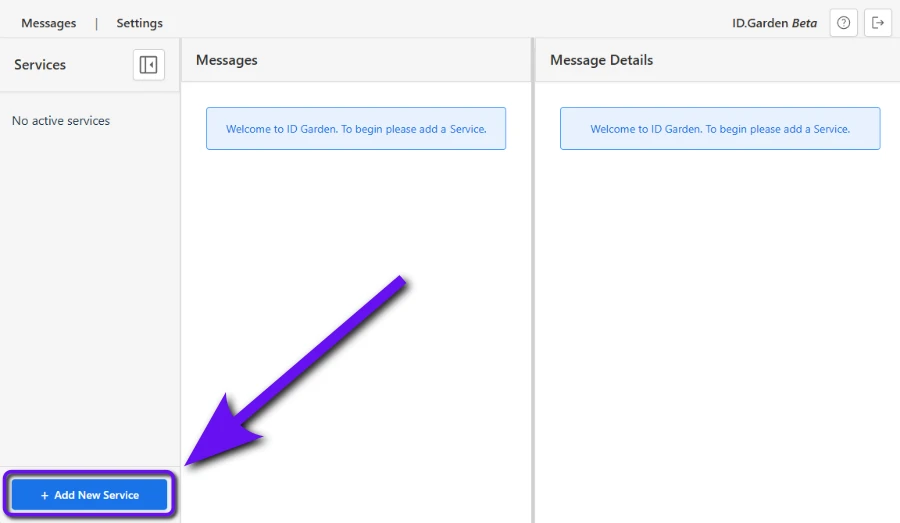
- Enter the name of the third party service e.g. 'substack'
- If we have preconfigured data for this service the interface will offer the service from a drop down list
- But if the service doesn't appear in the list no problem, press 'define new service'
- Optionally you can give the service a different display name. e.g. "substack newsletter XYZ"
- Press 'Create Service' button
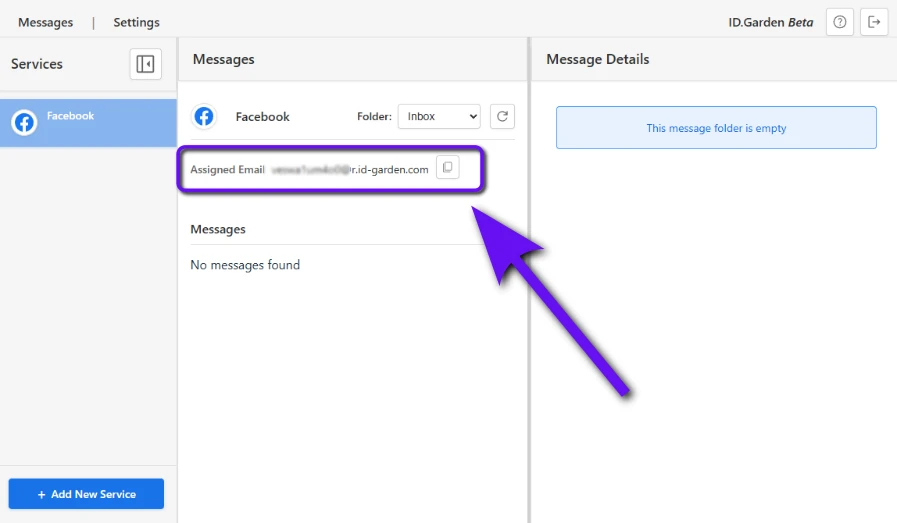
- You'll see a success screen with the new email address. You can already use the copy to clipboard button.
- Otherwise view the service any time from the service list on the dashboard to see the assigned email address at the top of the message list panel.
To make this smoother in future we are working on a browser agent that will help you create new inboxes straight from the sig nup form of a third party service.