
Move or delete a message
Moving to trash and perma deletion
To delete a message:
- Move it to the trash folder. This automatically delete messages
- Once it's in the trash (or suspicious) folder you also have an option to permanently delete the message.
How to move
You can freely move messages between any folder
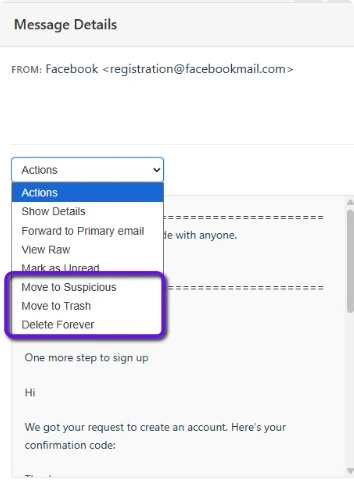
- Using the actions dropdown
- In the selected message panel, above the message body press the 'actions' dropdown
- Press 'Move to Inbox/Suspicious/Trash'
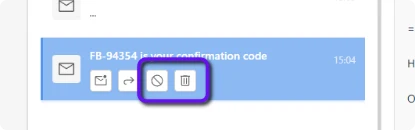
- Using the quick action buttons (not available on mobile)
- Select an email you want to move in the message list
- Press the respective button for where you want to move the message.
Want to change the folder you are looking at? See detailed instructions on switching folders here.
If you move a message from trash back to inbox then the 30 day timer will reset for that message before it's automatically moved again to trash.
Note: Messages automatically move from inbox to trash after 30 days, and then from trash are permanently deleted after 30 days. If you wish to keep messages forever, forward them to your primary email..